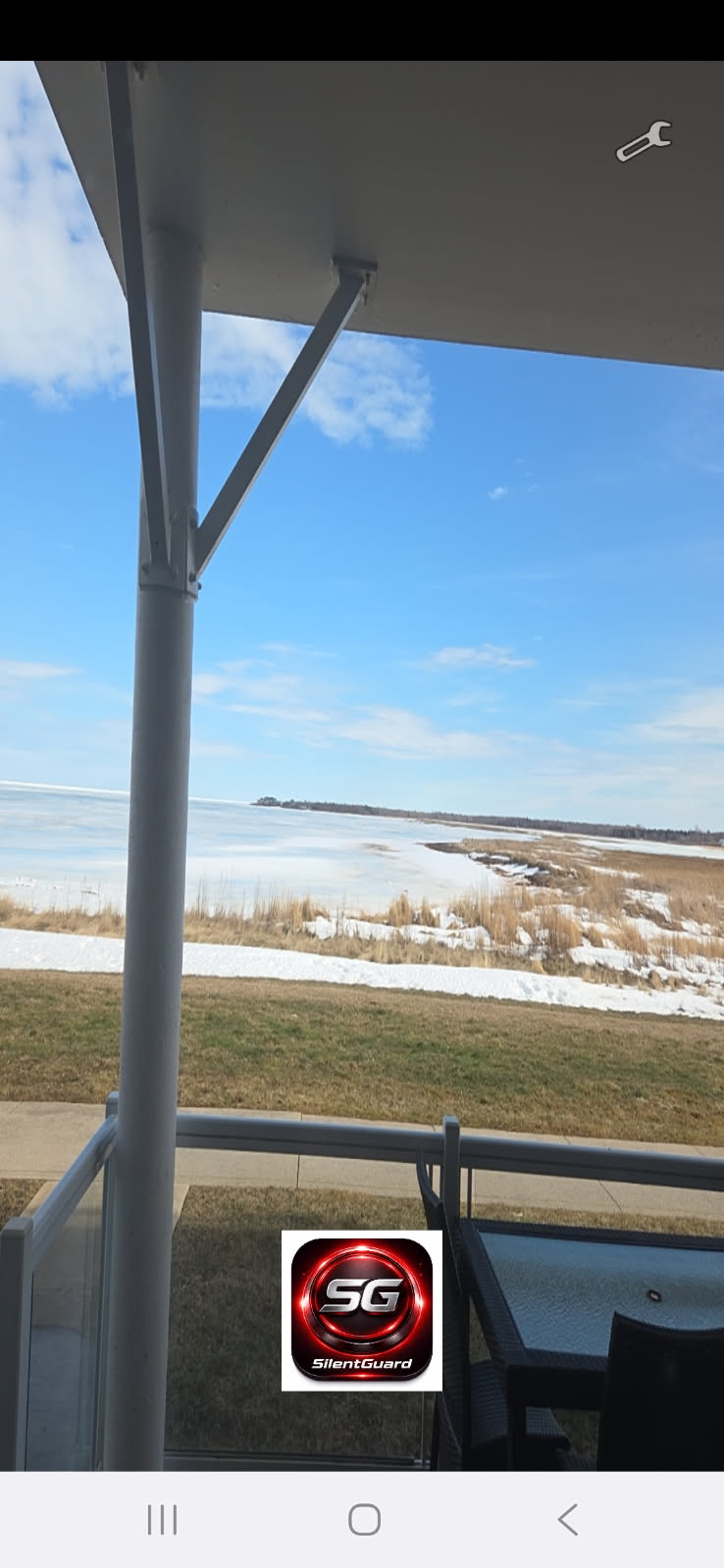
Tap the wrench icon in the upper-right corner of the app
Open the RecordNow app and tap the wrench icon in the upper-right corner
to access the configuration panel.
Here you can configure voice triggers, shake detection,
recording length, and alert notifications.
STEP 2
Configure Settings
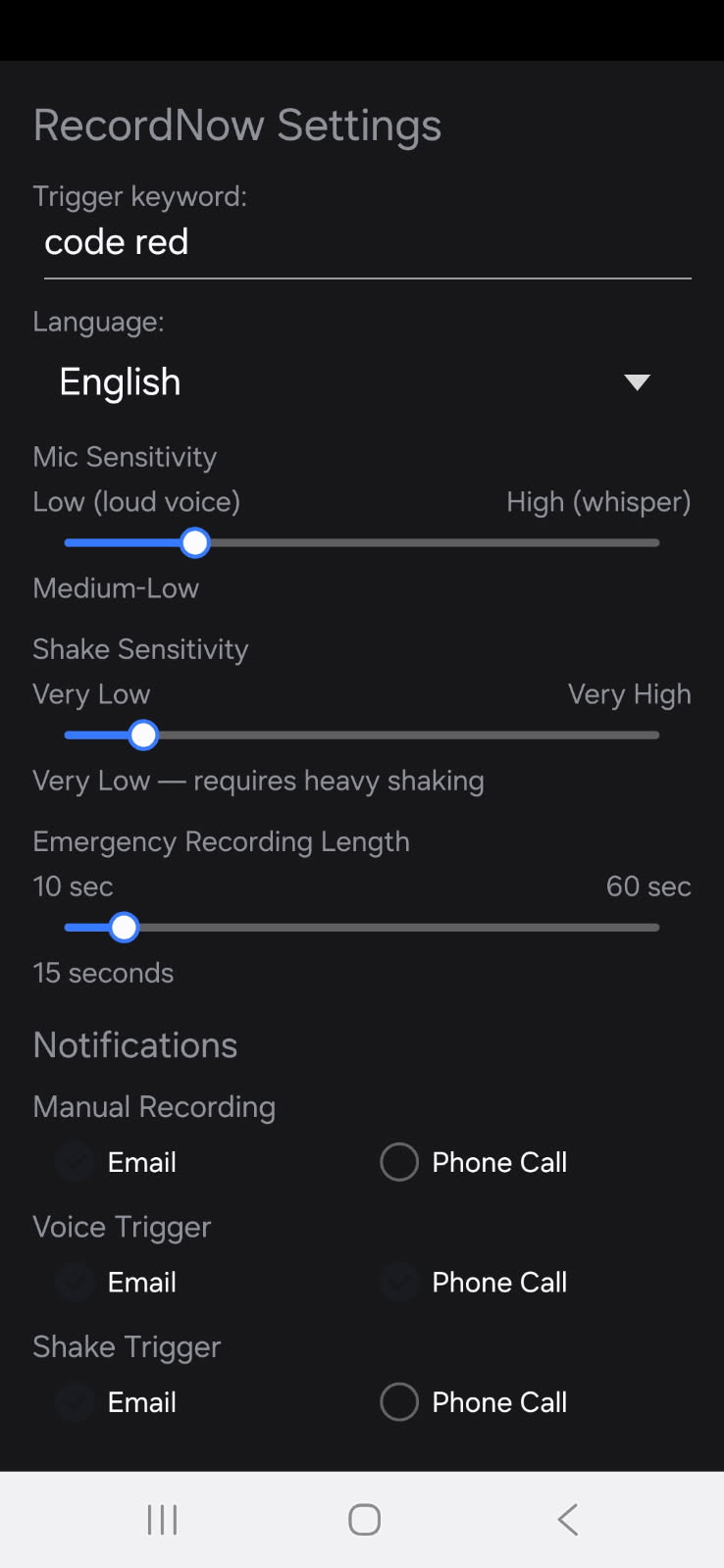
RecordNow settings interface
Trigger Keyword
This spoken phrase activates emergency recording.
The example shown uses code red.
Choose a phrase that is easy for you to remember but unlikely
to be spoken accidentally.
Language
Select the language used for voice recognition.
English is already installed.
If you select English, simply press Save Settings.
If you choose another language such as French or Spanish,
press Download Selected Model before using voice trigger.
Shake Sensitivity
Controls how easily sudden motion activates recording.
Less sensitive requires stronger movement.
More sensitive triggers recording with smaller movements.
Emergency Recording Length
Minimum length: 10 seconds
Maximum length: 60 seconds
Shorter clips upload faster.
Longer clips capture more evidence.
Notifications
Notifications can be configured for:
Manual Recording
Voice Trigger
Shake Trigger
Each trigger can send:
Email alerts
Automatic phone call alerts
Sound alarm (local only – not sent to anyone)
🔊 Example Alarm Sound:
This is the sound that will play on your device during an emergency alert.
Important: The selection circles appear inverted.
Empty circle = enabled
Filled circle = disabled
Who Receives Alerts
Emergency alerts are sent to the trusted contacts configured
in your SilentGuard dashboard.
Email alerts include the video recording and GPS location.
Phone call alerts notify contacts immediately of an emergency.
Sound alarm plays on your device only and is not sent to anyone.
Manual recordings are not sent to emergency contacts.
They are stored securely in your account for your own access.
Adding Emergency Contacts
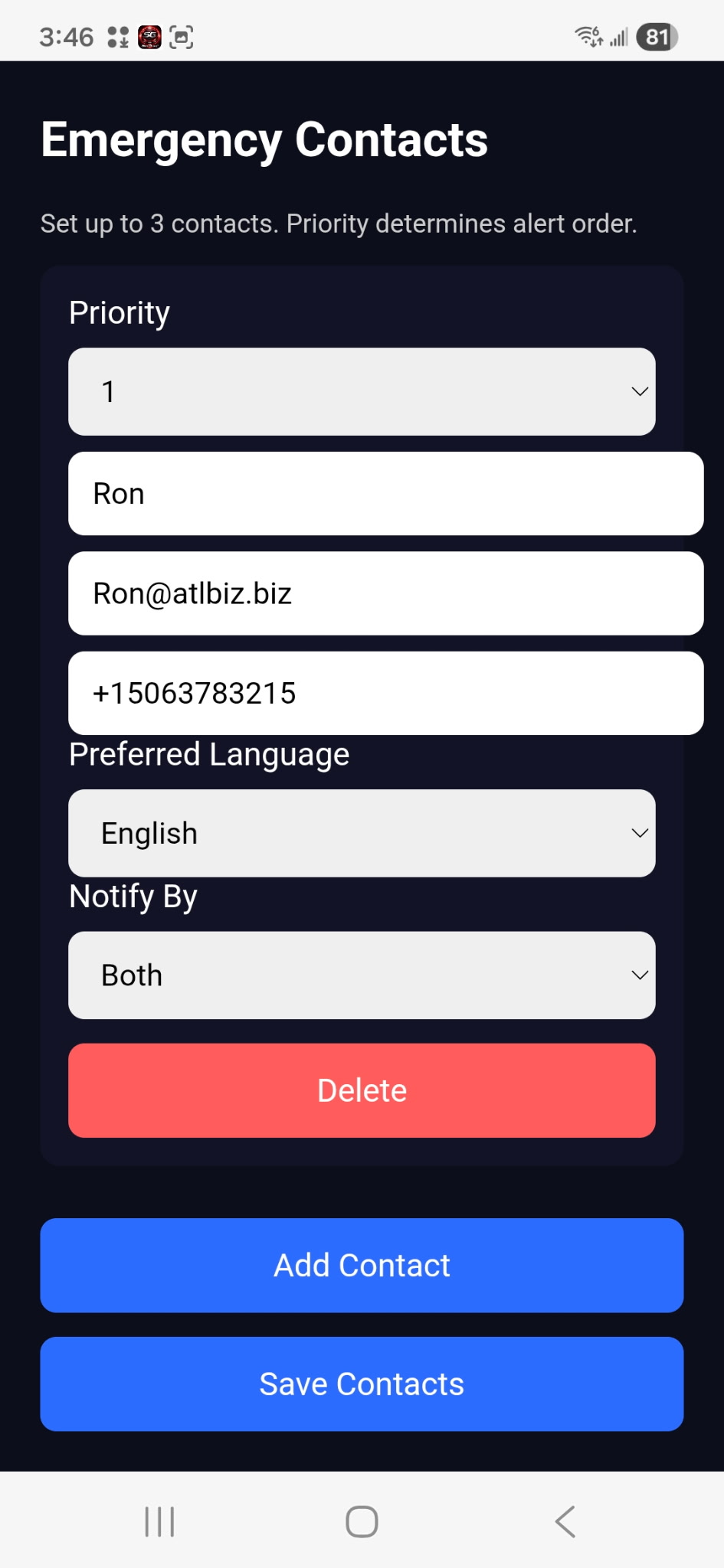
Adding emergency contacts in the SilentGuard dashboard
Priority, from 1 to 3, determines the priority call sequence.
Click on the white window below Preferred Language to see the dropdown menu,
select your language and then press Done.
(If your preferred language is not shown, please let us know and we will add it.)
Click on the white window below Notify by to select the method of notification.
(Please keep in mind, your selection settings will override or work in conjunction with this setting.)
Then click Done.
You can add as many as 3 emergency contacts.
When done click Save Settings.
Emergency Contact Phone Number Format (IMPORTANT)
Recommended format:
Use international format starting with + and country code.
Canada / USA: +15068883215
France: +33612345678
UK: +447911123456
India: +919876543210
Rules:
No spaces or dashes
No leading 0 after country code
Always include country code
Preview Emergency Phone Call
Save Settings
Always press Save after changes.
🔒 The "Always-Ready" Lock (Essential)
To ensure RecordNow can hear your voice command at any moment, you must "Lock" it in your phone’s memory.
This prevents the system from closing the app to save battery and ensures it stays active in the background.
Open Recent Apps
Tap the Recents button (|||) or swipe up and hold.
Access the Menu
Tap the app icon at the top.
Activate the Lock
Select "Keep open".
Confirm the Padlock
Padlock icon appears.
Why do this?
Prevents Android from killing the app. Keeps voice trigger active at all times.
STEP 3
Manual Recording
Press SG button to start/stop recording.
Limit: 5 minutes per recording.
Try All 3 Recording Modes
RecordNow gives you three powerful ways to start recording instantly.
Try each mode so you’re prepared in any situation.
🎥 1. Manual Mode
Press the SG button to start and stop recording.
As soon as you stop, the video is automatically uploaded to your secure cloud dashboard.
🎤 2. Voice Trigger
Speak your trigger word(s) and recording will start automatically.
You can set the recording length in Settings.
📳 3. Motion Detection
Shake your phone and recording will start automatically.
You can adjust shake sensitivity in Settings.
Tip: Test all three modes so you know exactly how RecordNow responds when it matters most.
Important:
RecordNow assists with safety but does not guarantee prevention or response.
Use in accordance with local laws regarding recording and consent.
Users are responsible for lawful use.